Thursday, August 18, 2022

XPPen 17th Anniversary Sale 2022: Best Drawing tablets Deals this Summer


You may be considering getting a tablet to help with digital art such as 2D illustrations, Photo editing, digital painting, 3D texture painting, 3D sculpting, or other common uses.

A drawing tablet is a tool that can translate the strokes from a pen-shaped stylus to a digital screen in an extremely accurate way. It's a good buy for any level digital artist who uses their computer as the locus of their workstation.

This technology is commonly used by artists, illustrators, animators, digital photo editors, architects and engineers, for example, to transplant their art and work onto a digital canvas.

Well, creating digital art with a drawing tablet is a given. It can be super-useful for creating eye-catching visuals. or just a wonderful hobby in and of itself.

If you're on a budget, you can Save big on select XPPen drawing pads this summer with their 17th Anniversary deals on the XP-Pen Star series, Deco series, Artist series, and more!

Graphic Tablet vs Pen display: Advantages and Disadvantages?
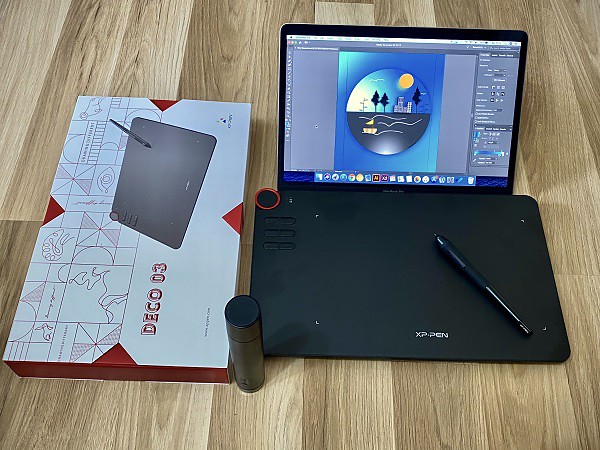
Pros for a screenless tablet, there's less cable management and it's cheaper. which is a great affordable option for a beginner to digital art.

But there is a learning curve to tablets without a display since you have to look at your monitor and not where you're drawing, but once you get used to it, it's pretty easy to use.

Pros for a screen display, it's definitely nice to be able to be able to draw directly on the screen. It is easier as it is the most like drawing on paper and you are able to look at your hand whilst drawing.

But They're more expensive; They break much more easily so you can't carry them around carelessly like you would do with a Wacom Intuos or XPPen Deco; Once you start drawing on a graphics tablet that has a screen you will never want to draw with another that doesn't.

Plug your drawing tablet into your computer using the plug-in cable and download the tablet driver from the Brand‘s official site. At this point, your tablet should be ready to start using.

Download and open a graphics application such as photoshop or illustrator that is compatible with your tablet. then just Start creating! There are also a lot of free digital art programs for you to use. which can helps you create stunning images.

Drawing tablets - are they worth it?
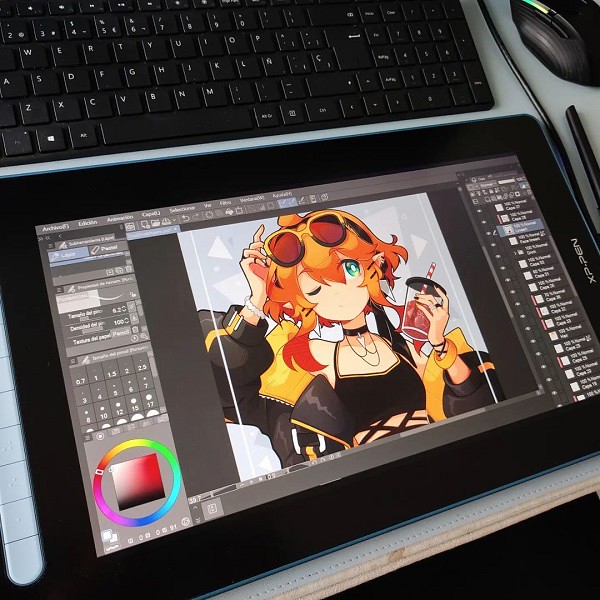
The digital pens comes with graphic tablet can be used as a mouse as well as a drawing tool. Even if you're not drawing, a tablet is a game changer. It's just so much easier to do certain things with a pen than it is with a mouse.

The big benefits are the pressure sensitivity. The drawing board on the market now usually offers about 8,192 levels of pressure sensitivity, which let them feels much more natural and responsive.

With a small amount of practice your fingers on a pen are likely far more dexterous than your arm and wrist manipulating a mouse; it takes some effort to learn, but it can become a more natural and precise motion when using a pen.

You can use this device for concept art , sketches, preparing compositions, preparing stencils, doodling. It will changed your career. It's a joy to draw, and your production and efficiency are through the roof.

You can use it on photos that need touching up (more than just slider/level adjustments). It's very beneficial if you're using tools that take advantage of the pressure sensitivity. Masks, brushes, dodge/burn, etc all become far more effecient when you don't have to muck about with brush sizes and whatnot.

If you've ever worked with a 3D software like Zbrush, Blender, Maya or 3D Max you know that you spend a lot of your time looking at the character model and moving its body parts around. Doing that with a pen feels so much more natural than a mouse, it's like touching the model with you hands. You get more precise with your tweaking and you move around incredibly faster.

A Drawing tablet and the stylus can significantly improved the work flow for note taking and productivity. with the note taking apps such as OneNote, Evernote... which support pen input function, you don't have to worry about losing/damaging the notes, and searching for specific topics / info is much quicker, you can re-edit and re-add anything and everything whenever you want.

It even have the ability to write in Microsoft edge browser. To do this, select the drawing tool in Microsoft Edge and you'll be able to write over any webpage.

About XP-Pen
Wacom is the industry standard. and they have the most experience brand wise and user experience. but the price is quite expensive and pricey.

Wacom has more competitors now than it has ever had in it's life and there are more coming every day.

If you're starting out, XP-Pen might be a more budget friendly way than Wacom to get into trying digital art using a drawing tablet, and the reviews one the Internet are much and seem quite good.

Founded in Japan, XPPen is a professional company that has been making graphics tablets since 2005 and they improve their products and closing the gap with Wacom products and in even exceeding in some areas while keeping them more affordable.

Their screen-less drawing pads includes Star series and Deco series offer great control that attaches to your computer via USB or Bluetooth.

The XPPen Artist series elevates this functionality with a truly beautiful screen display that syncs right in with your computer, to make a deeply integrated digital art workstation that especially for Windows and Mac users.

You will find non-screen xppen tablets for any size, including A4, A5, A6, A7. And the drawing monitors offers from 10" to 24". both types of tablets come with plenty of buttons and roller wheels to customize shortcuts, etc. it's amazing.

The XPPen's stylus uses the most advanced EMR technology. It creates an electromagnetic field that extends 10 millimeters up from the tablet/screen surface. This means the digital pen can works without batteries, it doesn't need to be charged. When the device is on, the pen is on.

To get you started, XPPen provides you with free creative software: Artrage 6, Toon Boom, Zoner Photo Studio X, ArtRage Lite, openCanvas, Cartoon Animator 4. Software bundles differ by model. you just need to register your product on xppen official site after purchase.

XPPen Anniversary Sales Event 2022

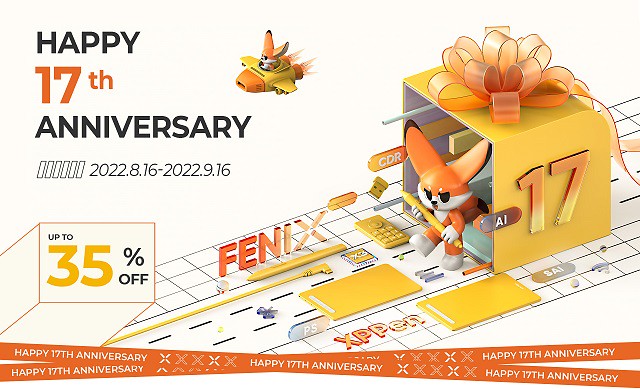
XPPen 17th Anniversary Sales Event 2022 has arrived! Don't miss out on this chance to save a lot of money and get some excellent discounts.

Whether you're back-to-school shopping or thinking about upgrading your graphic tablet and pen display monitors, the XPPen Anniversary Sale has everything from XPPen Star series, Deco Series to Artist series marked down now.

You can save up to 35% off on selected XPPen drawing tablets and Accessories during their 17th anniversary promotion. These XPPen drawing tablet deals are available from August 16 to September 16. nonetheless, I strongly advise taking advantage of them right now. the next special sale would be black friday and christmas.

See the list below for opportunities to save up to $270!

1. XPPen Artist Series

The XPPen Artist's display is magnificent. It's a low-gloss glass pane that's comfortable to draw on. The IPS panel has a rather remarkable color gamut. for example the 15,4" xppen artist pro 16 model is capable of displaying 99 percent of the Adobe RGB spectrum.

What this means is that Adobe RGB is well suited for CMYK printing for paper projects, and more accurately displays a band of cyan-inflected hues than the other color spaces.

The screen is also impressive for its resolution and brightness. even the cheapest 11,6" xppen artist 12 model has a 1920 x 1080 resolution, meaning it's really pixel rich (strong feature for a pixel manipulator).

The brightness of XPPen artist series is rated at 250 nits. That brightness and resolution paired with the glass ( come with an anti-glare screen protecter ) means that you can see everything on the screen clearly, even in direct sunlight.

Artist 10 (2nd Generation) (10,1", was $169.99, 10% off)

Artist 12 (11,6", was $199.99, 15% off)

Artist 12 (2nd Generation) (11,9", was $249.99, 20% off)

Artist 12 (2nd Gen) Gift edition (11,9", was $249.99, 20% off)

Artist 12 Pro (11,6", was $259.99, 20% off)

Artist 12 Pro LINE FRIENDS Edition (11,6", was $299.99, 20% off)

Artist 13 (2nd Generation) (13,3", was $299.99, 15% off)

Artist 13.3 Pro (13,3", was $279.99, 15% off)

Artist 13.3 Pro Holiday Edition (13,3", was $299.99, 20% off)

Innovator 16 (15,6", was $399.99, 25% off)

Artist 16 (2nd Generation) (15,4", was $399.99, 15% off)

Artist Pro 16 (15,4", was $449.99, 20% off)

Artist Pro 16TP (15,6", was $899.99, 25% off)

Artist 15.6 (15,6", was $299.99, 10% off)

Artist 15.6 Pro (15,6", was $369.99, 20% off)

Artist 22 (2nd Generation) (21,5", was $499.99, 20% off)

Artist 22E Pro (21,5", was $499.99, 15% off)

Artist 22R Pro (21,5", was $599.99, 25% off)

Artist 24 (23,8", was $799.99, 30% off)

Artist 24 Pro (23,8", was $899.99, 30% off)

2. XPPen Deco Series

The big difference between the regular Star series and Deco series range is mainly in the build quality of the tablet. the deco series tablet have a better stylus that come with a squishy rubber grip,which is extremely comfortable to use.

The high end xppen deco series tablet is beeter at simulating natural media. most of the deco tablets comes with ±60º of Tilt sensitivity, Allows you to quickly and professionally edit photos and create digital artwork using natural pen control.

If you do a lot of drawing and painting then the xppen deco is a worthwhile investment. It has better control and is a lot more durable.

Deco Mini 4 (4 x 3", was $29.99, 20% off)

Deco Fun XS (4,8 x 3", was $29.99, 20% off)

Deco Fun S (6,3 x 4", was $39.99, 20% off)

Deco Mini 7 (7 x 4,37", was $49.99, 20% off)

Deco Mini 7w Wireless (7 x 4,37", was $59.99, 10% off)

Deco MW Bluetooth (8 x 5", was $69.99, 10% off)

Deco Pro S (9 x 6", was $99.99, 20% off)

Deco Pro SW Bluetooth (9 x 6", was $129.99, 25% off)

Deco L (10 x 6", was $69.99, 10% off)

Deco LW Bluetooth (10 x 6", was $89.99, 10% off)

Deco 01 (10 x 6,25", was $54.99, 15% off)

Deco 01 V2 (10 x 6,25", was $59.99, 15% off)

Deco 01 V2 Line friends (10 x 6,25", was $59.99, 10% off)

Deco 02 (10 x 5,63", was $79.99, 15% off)

Deco 03 Wireless (10 x 5,62", was $99.99, 25% off)

Deco Fun L (10 x 6,27", was $49.99, 20% off)

Deco Pro M (11 x 6", was $129.99, 20% off)

Deco Pro MW Bluetooth (11 x 6", was $159.99, 25% off)

3. XPPen Star Series

If you are a photographer pen angle don't matter much but if you are drawing freehand you will need the pen angle in order to aim the airbrush tool. With no pen angle on the XPPen Star series (except the star g960s plus model) tablet the angle is forever fixed at "straight down".

Notably, the XPPen star series graphics tablets are relatively inexpensive at about $20 - 50 USD, and perfect for beginners. but it's backed with the assurance of the XPPen brand and features the most important specs such as the battery-free pen, 8192 levels of pressure sensitivity, plenty of active area size options, hotkeys.....

The XPPen Star is a good pick for a starter graphics tablet if you're on a tight budget or just trying out digital art.

Star G430S (4 x 3", was $29.99, 35% off)

Star G640 (6 x 4", was $39.99, 25% off)

Star G640 Line Friends Edition (6 x 4", was $39.99, 25% off)

Star G640S (6,5 x 4", was $49.99, 20% off)

Star 05 Wireless (8 x 5", was $69.99, 10% off)

Star G960S (9 x 6", was $49.99, 20% off)

Star G960S Plus (9 x 6", was $59.99, 20% off)

Star 03 (10 x 6", was $59.99, 35% off)

Star 06 Wireless (10 x 6", was $85.99, 25% off)

Conclusion

If you live in the US or canada, you can buy from the XPPen US online official store: https://www.storexppen.com

If you live in other country or Region, just select your country or Region from the "choose country" menu then jump directly to the locial online store. The XPPen Anniversary Sales event is global,but the discounts will vary based on regions.

If you have drawing skills, there are also drawing contests to enter and win the award. the award include three display drawing tablets: XPPen Artist 10 (2nd Generation), Artist 12 (2nd Generation), Artist 16 (2nd Generation). it's great, isn't it?

At the same time, you can subscribe to the xppen social channels (youtube, tiktok, instagram, and twitter) for livestream, discounts and giveaways! more details you can visit this page: https://www.xp-pen.com/AnniversaryGuide

Having the right tool is important! Let's get ourselves a new drawing tablet and enjoy it. Maximum power for design work and digital drawing!

Tuesday, July 5, 2022

XPPen Deco MW excellent bluetooth drawing pad Review


Whether you are a graphic designer, illustrator, video editor or photo retoucher, having a comfortable workspace and professional tools is fundamental to fuel your creativity and productivity.

If you want to get started in digital art the drawing tablet is an ideal choice. Using the best drawing tablets can make creating art digitally as natural as sketching on paper or painting on canvas.

There's so much to choose from when it comes to drawing pads! the best quality tablets will come from Wacom and XP-Pen. Once Wacom was the only brand in drawing tablets, now XPPen carved out a niche by offering appealing, affordable alternatives to the industry leader.

XP-Pen is a chinese firm that specialises in graphic tablets, pen display monitors and related devices. It was formed in 2005 in Japan. With Star, Deco and Artist series, it is a national high-tech firm with multiple patents and autonomous R&D capabilities.

I have been a XP-Pen user since 2018 as well as for writing detailed reviews of their new products a few years ago. my old model tablet is still served but the Specifications are out of date now. because the technology has improved a lot since then!

Since the type of artistic freelance work I do requires me to have a tablet, I went ahead and bought the smaller XPPen Deco MW, hoping it could serve me well for a couple of weeks. It turns out the tablet is a good buy for beginners, an acceptable fit for artists on a tight budget.

Like the other XPPen Deco tablets, the XPPem Deco MW Tablet is a graphics tablet—with a writing surface but no screen—responsive to an included pen stylus commands. Your pen strokes are mapped to your computer's screen or monitor, so you can draw, edit photos, and perform other actions and see the results almost immediately.

The XPPem Deco MW is a great addition to the lineup, because it's small and portable, while packing the punch of its larger siblings. it comes in two versions: Deco M, and Deco MW. Deco MW is the wireless Bluetooth model and Deco M is the wired.

I love to use the small Deco MW when traveling and its great to fit on a podium or table while speaking at events.

It's a good choice as a graphics tablet for use with a laptop, especially for mobile use where your working space may be at a premium.

Introduce

The active horizontal drawing area of ​​the Deco MW is 8″ x 5″. Thickness is 8.8 mm. It's light, thin and easy to move around the table, and it has rubber feet to prevent slipping.

This tablet uses two-shot molding with a rubber material to protect the edge. which help protect it from drops, bumps and scuffs. Overall design looks quite seamless.

There is a row of eight shortcut keys on the side. The tablet can be turned so the keys are on the left or right, depending on whether you're right or left handed.

One of the unusual features of the Deco MW is wireless Bluetooth 5.0. Also new is that the XP-Pen has rebuilt its wireless stylus from the ground up. The X3 Elite Pen equipped with the most advanced X3 Smart Chip technology.

The colors offered are pleasant to look at. The XP-Pen Deco LW Pen drawing tablet comes in four colors: green, pink, blue, and black.

More Information about Deco MW tablet from XP-Pen official site: https://www.xp-pen.com/product/1250.html

Unboxing

The box the XPPen Deco MW comes in is small, light and has a nice design on the front to catch your eye. On the back, You have all the information you need at your fingertips, including the size, colour and other infors.

On opening the box you will find the tablet, the stylus, 2 Adapters, Wireless Dongle, 10 Nibs, Nib Extractor, Quick Guide, Warranty Card and a USB-C cable.

The cable is used for charging the Deco MW as well as connecting it to a computer, which you will need to do to get started.

The two small adapters for use with Android or Chrome OS devices with USB-C or micro-USB ports.

Unlike other drawing tablet makers, XP-Pen is known for giving out so many useful accessories.

Connectivity

Bluetooth connectivity means you have extensive flexibility with your work setup—without annoying cords and cables in the way.

Bluetooth may or may not require the supplied USB dongle to work—it depends on your computer model and setup. The dongle is USB A, but the XP-Pen offers USB-C and Micro USB adapters if needed.

Surprisingly, the Deco LW feels snappy and responsive overall when being used wirelessly.

The device can also connects to your computer using the latest generation USB type-C connector.

One of the main advantages of USB-C is, it can be plugged on both sides which makes it very comfortable to use in both left or right-handed mode.

It comes with L-shaped connectors which makes the wires swiftly run along the sides of the tablet without making a mess. The wires are long and seem to be made of quality materials.

Driver Install

You can get your product drivers, manuals from xp-pen official site, There are drivers for Windows, MacOS and Linux. The driver enables the tablet to properly communicate with the computer and take full advantage of the hardware.

On the very first page of the driver, you will find a pressure curve that changes the pressure sensitivity of the pen. You also get the option for mapping your monitor, changing your button shortcuts and much more.

The 8 buttons can be customized to execute your choice of actions (apply modifiers like Shift, Ctrl or Alt for example), commands or navigation functions and can be used alone or in combinations. Think of them as a flattened and expanded set of mouse buttons. Once you decide and assign the operations you want automated, the keys are great time savers when used in drawing and photo editing.

The drawing tablet can be used with Android and Chromebook devices but because there's no driver, you won't be able to use or customise the shortcut keys or pressure sensitivity.

Setting up your XPPen Deco MW with a smartphone is pretty easy. To get started you would need a USB OTG connector and a compatible Android smartphone. Once you have those all you have to do is connect your tablet with your phone through the USB OTG connector. you can then use your Deco MW with a smartphone.

For Chromebook, The XPPen Deco MW is fully plug and play so all you have to do is connect your tablet with your chromebook laptop and unleash your inner artist.

Bundled free software

You have a few different options depending on the xppen's model that you get. Since I have the XPPen Deco MW model, I can download 4 different pieces of software. I can get Explain Everything, ArtRage Lite, Toon Boom and Zoner Photo Studio X.

“Explain Everything” is a software you are getting for free together with this tablet. It's great for remote learning and allows both students and teachers to share their thoughts and ideas in real-time.

ArtRage Lite is a realistic art media painting program that you can mix colors directly on the paper while you are painting.

Toon Boom Harmony is a 2D vector- and raster-based animation suite with a robust animation and compositing toolset.

Zoner Photo Studio X is a full photo-editing toolkit, with workflow, corrections, effects, online galleries, print ordering, and even Photoshop-like layer editing......

Drawing Surface

The work area of the Deco LW is slightly textured, which can make moving the stylus around while drawing feel more natural, like a pen on paper, by providing some resistance for the nib.

The Active area of XPPen Deco MW is 8 x 5 inches, which is verity good for the price you will pay for this tablet, giving how any Wacom with similar active area will cost much more than this one.

The current beginner Wacom Intuos Art tablet has a medium size of 8 x 5 inches drawing area costs a whopping 200 USD.

Bear in mind that the active area is different than the overall dimensions of the graphics tablet itself, which are 10.2 x 6.2 inches.

The bigger the tablet, the better the precision. As a rule of thumb, I normally recommend a large sized tablet for anyone using a monitor of 20" or larger.

I've tried the various sizes and Medium size has always worked best for me. Your mileage may vary, but I always encourage people to start with a Medium size and if you are dissatisfied after using it for a week then work with your seller to get an alternate size.

Stylus with X3 Smart Chip

The new stylus feature XP-Pen's most advanced X3 smart chip technology. This new tech allows for the stylus to have a lower initial activation force meaning, allowing the stylus to be much more sensitive. This results in nice, smoothly tapered lines and better control of the pen's 8,192 points of pressure overall.

There is over 8,000 levels of pen pressure, which means that you can get really nice, smooth transitions between opacity and line width, and it feels a lot more natural to draw.

The Stylus features a 60 degree tilt angle which allows you to simulate accurate brush strokes and create realistic drawing effects. "Tilt Angle" is actually the direction your pen is tilting. Which is controlled by the direction feature, in Photoshop under the brushes pressure drop downs menus. It will allow you to do things like use arrow brushes and have them always follow your crazy curvy lines to follow in the drawn't direction.

The stylus has two buttons by the side. There's no eraser and to me it's not really a big deal. I got around the inconvenience by customizing two express keys in Photoshop; one for the brush and the other for the eraser.

The stylus is thinner than the usual Deco ones. There's no rubber grip but the textured surface throughout ensures that it's not slippery even if you have sweaty hands. It has a nice weight and comfortable to hold and draw with.

Use Performance

All the shortcut buttons are placed on the left side of the device which is an ideal position for your hand to rest naturally. The quality of the buttons is great as they make a crisp click sound with good feedback.

This reliable wireless design also makes it easy to take it on the road with your laptop when you travel too!

The matte textured surface is nice to draw on. There's a nice tactile feel to the nib as it glides on the working area. There's no lag to speak of. Strokes appear instantly as dictated by the stylus movement. Quick strokes are smooth and have no jitter.

Apart from the physical feel, it performed great in various digital painting software. The stylus was very responsive, with no delay in between me placing a stroke and it showing up in Photoshop.

Its pressure sensitivity was on point, and there were no wobble and jittering in fast as well as slow movements. I was able to place some lovely strokes with different sizes and opacity.

The transition from low pressure to high very accurate and on point with no traces of pressure bumps. Lines are able to taper smoothly.

The Initial activation force is really very low. I was able to draw a thin line with barely any pressure applied. This is the most sensitive pen XP-Pen has made so far.

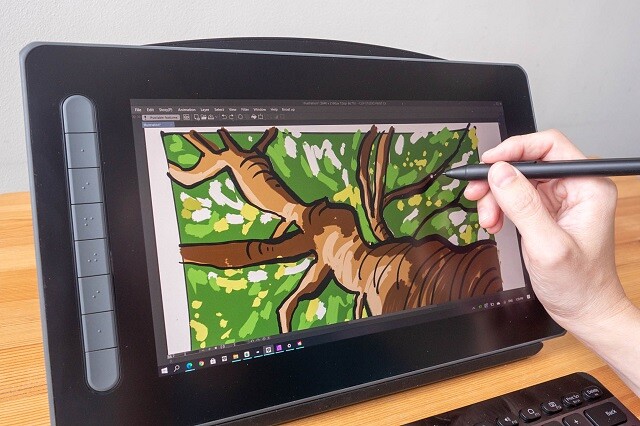
My digital artwork made by xppen deco mw tablet:

I love how the pressure-sensitive pen allows you to draw realistic and precise strokes. It almost feels like drawing with an actual pen. Besides drawing, I designed different hand-drawn fonts, icons, and brushes using the tablet.

I also highly recommend it for doing photo editing work like using the healing brush, creating complex masks, HDR, dodge & burn, painting, etc…

Even if you have a good touch screen, nothing replaces the XPPen Deco MW for photo editing in Photoshop (and it's pretty darn handy in Lightroom if you use the adjustment brush). It's just so much more easy and natural than using a mouse, and you get used to them really quick to the point that you can't live without them.

Although I used Adobe Photoshop throughout this review, let it be known that the Deco MW works with all major graphics applications.

In this new era of touch everywhere devices, one place where things were a bit clunky with pen tablets was that there was no mechanism for doing natural touch gestures like swipe.

Final Verdict

XPPen is a highly affordable, credible and reliable brand which makes it stand out from other brands. For many reasons, XPPen has quickly grown to become one of the the most popular drawing tools for digital artists around the world.

XPPen Deco MW is a good tablet for all kinds of creative digital work like illustration, vector design, image editing, etc. Although it's mainly advertised as a beginner or student drawing tablet, any level of creatives can use it.

This tablet is good value for money because its drawing experience is just as good as other fancier tablets that I use, and it costs much less. The size is small enough to take anywhere and at less than $70 USD its really worth it.

It can be a great option for your first tablet if you're new to graphic design and drawing. It's also a good budget option for those who are looking for a quality tablet at a lower cost.

I like how portable it is because I can work anywhere with the tablet and it doesn't take up much space in my bag or on the desk. This small size option is probably one of the most pocket-friendly tablets that you can find in the market.

I would also recommend investing an extra $20 to get the XP-Pen Deco LW which has a larger working area of 10 x 6 inches, if only for the better X3-Smart-Chip pen, less $20, get the Deco M version without bluetooth.

Once you advance in your career and start becoming a pro you might want to opt for a display drawing tablet like the XP-Pen Artist series. But, as a beginner or intermediate, the XPPen Deco MW will be your best friend for a long time.

Buy it from XP-Pen US Official Store: https://www.storexppen.com/buy/deco-mw.html

People from Other regions can select your country from the menu to reach the local store, the price may be different because of the Transport costs and customs tax.

Monday, February 21, 2022

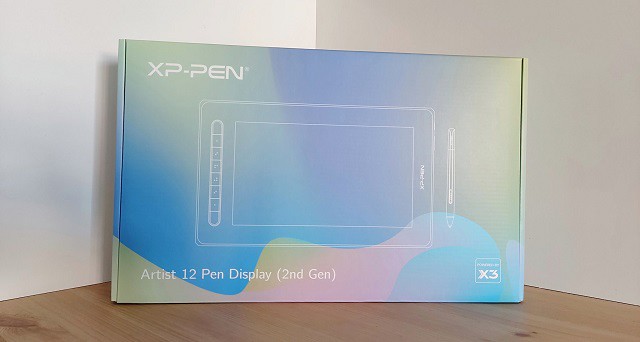
XP-Pen Artist 12 (2nd Generation) Budget Pen Display Monitor Review


Remember the light pens that let you draw right on your screen? Take a look at XP-Pen's updated digitizing pad version - Artist 12 (2nd Generation).

Digitizing pads are wonderful things, but we're at our best when we can look at what we're drawing as we draw it. Looking down at your pad and then up at your monitor to see what the computer "saw" may be a great way to strengthen your neck muscles, but it's a tiring way to draw.

Designed to work in a multi-monitor environment or to be your only monitor, this tablet's display screen shows you what you're drawing as you draw it.

This is a huge upgrade for me. I have gone from the lower end XP-Pen tablets (Star, Deco...) to this. I am not a die-hard serious artist, but I do commissions from time to time and overall want to improve my work and the speed of my workflow.

My goal is to work on compiling coloring books at some point, so I really wanted to get serious without completely breaking the bank. I read each review on this product several times before finally making the decision to buckle down and buy this Artist 12 (2nd Generation) Pen display monitor .

Since XP-Pen is the only brand of tablet I have used and essentially the only brand that I trust, I had no concerns at least giving this tablet a try. And let me say, I am so very glad that I did!

Design

The XP-Pen Artist 12 (2nd Generation) combines the advantages of a high quality IPS LCD monitor with XP-Pen's patented, professional X3-Smart-chip pen technology to form the perfect interactive companion for your Mac or PC.

Thin and light, the new Artist 12 (2nd Generation) gives you the flexibility to work directly on screen as you would on paper.

Easily rotate your display when working flat on your desktop to find the right position for your hand, or for grater comfort, recline the Artist 12 (2nd Generation) on the desktop.

Ergonomically designed for maximum comfort, it's even light enough for use on your laptop.

Any way you choose to use it, the Artist 12 (2nd Generation) gives you a natural pen-on-paper feel in a digital environment.

The XP-Pen Artist 12 (2nd Generation) tablet is available in 4 beautiful colors: Black, blue, green, and pink.

There are four rubber feet on the tablet back to help it stay still on flat surfaces.

The bezel on the unit also sports 8 customizable keys. and the buttons are a productivity enhancing joy.

As well as being able to connect it to a Windows or Mac OS computer you can also use it with an Android device, like the Samsung Galaxy Smartphones.

Connection

The setup for the XP-Pen Artist 12 (2nd Generation) is technically simple. Plug in some cables, install the XP-Pen drivers which you can download from XP-Pen official site: https://www.xp-pen.com/product/1069.html , restart your machine, and you're good to go.

Admittedly, the set-up is a little daunting with all the cords that come with it.

The XP-Pen Artist 12 (2nd Generation) uses an all in one adapter that splits to 3 connectors for power, HDMI and USB.

The HDMI powers the display and the USB acts as an interface for the digitiser pen. The third cable ends in a jack, to which a cable to the power adapter connects.

you can also connect to any Mac or PC with a single USB-C cable (not included) to a USB-C port for both video and data.

I read over the instructions a couple of times before I started to ensure I had a good grasp on what I needed to do, and once I began plugging things in, it was a breeze.

Don't let the cords worry you too much. It is not pick-up-and-go portable, but not impossible to bring it with you on the go. Just set aside a little extra time for setting up everywhere you do go.

Driver Features and bundled drawing software

Like all XP-Pen tablets, the Artist 12 (2nd Generation) includes driver software that provides a variety of controls over the behavior of the tablet and individual pens.

This includes sensitivity adjustments for tip feel, and pressure sensitivity; button assignments for individual pens; and functions for the buttons on the tablet itself.

These settings can be made globally or assigned as custom settings for individual applications. This is useful, for example, when you want to set the button to scrub in Paint Tool SAI but zoom in Adobe Photoshop.

Like other XP-Pen Artists, the Artist 12 (2nd Generation) include a utility (built into the driver software) for calibrating the cursor with the position of the pen.

On the software side, it's also worth noting that the Artist 12 (2nd Generation) comes bundled with Artrage 6 , openCanvas, and Cartoon Animator 4 digital art software.

Color Accurate Screen

The Artist 12 (2nd Generation) sports a 11.6-inch IPS LCD display--a bit smaller than a Apple MacBook display. The screen has a resolution of FHD 1,920 x 1080 pixels and looks good at this size. so the images on screen appear sharp, crisp, and vibrant.

IPS display technology boasts bigger, better, and brighter colour contrast, visual and sound quality, and more robust viewing angles among other attributes than its predecessors (TN and VA monitors).

The viewing angle of this tablet is a whopping 178°, meaning that you are able to get the same crisp, colour saturated picture even when looking at the screen almost sideways.

The Artist 12 (2nd Generation) monitor have the capability of displaying a much wider range of colour of 94% Adobe RGB. What this all means in real world terms is the reproduction of much deeper more saturated, accurate and natural colours.

This enables better rendition of colour tones and better gradation in colour. For image processing and printing this is a key advantage and for photographers is critical to achieving the best possible results.

As a display designed specifically for visual artists, its quality is far superior to that of any notebook display I've seen. Colors, brightness, and contrast are even across the face of the screen. And the device calibrates up nicely using a colorimeter.

Above that, Artist 12 (2nd Generation) tablet has a laminated display, something that reduces parallax. This means there is no air gap between layers, thus there is no light refraction or light interference, making the screen clear and vibrant.

Many of the non-laminated display drawing tablets suffer from a common issue called parallax. In use there is a slight gap between the tip and the pen and the display when you draw, which allows for parallax error.

The tablet screen does not have a etched glass surface, but is covered with a matte film. As you'd expect from a matte screen protector, it does reduce glare considerably and it cuts down on fingerprints too.

X3 smart chip powered Stylus

As for the pen which comes with the X3 smart chip. The initial activation force is lower than other XP-Pen stylus which is a huge plus.

X3 Elite Stylus requires as little as 3 gram-force and probably less which is about equal to simply resting the pen tip on the digitizer. It can even start writing and drawing without exerting force and only relying on the gravity of the pen itself.

As usual XP-PEN Stylus works without batteries and is lightweight, so there's no need to charge it at all.

It has 8,192 pressure sensitivity levels, placing it among the best styluses on the market.

Pressure sensitivity determines how much you can vary the width of the lines you paint. This is done by applying different pressure on the tablet surface.

When it comes to that. Pressure sensitivity helps you draw like you do with traditional media. Like pencils & brushes.

The 8192 levels of pen pressure sensitivity will provide you with ultimate precision and control with every art and illustration that you are doing.

This stylus also supports a tilt function of up to 60 degrees. It means that when you use the appropriate brushes in Photoshop, the line on the drawing file will change from what angle the pencil holds to the screen.

Using the XP-Pen Artist 12 (2nd Generation)

Couple this with a laptop or, say, a Mac mini, and you have yourself an excellent, compact, portable setup for visual arts. Or combine it with a higher-end workstation and additional displays, and it makes a great companion tool that can also be taken on the road when needed.

The XP-Pen Artist 12 (2nd Generation) is compatible with any drawing software, including Photoshop, Illustrator, Paint Tool SAI, Sketchbook, Clip Studio Paint, Gimp, Krita.... and etc. It works transparently and, it's completely plug-and-play.

The screen is the perfect size for the type of work that I do, so I have absolutely no complaints about that in the least. I was initially concerned that the size would be to small, but it is great!

However, if you are more serious about your art or currently seeking to become a professional, it probably wouldn't hurt if you got a larger size.

Others have commented that they were scared about the stylus not being able to go all the way to the edge of the screen, but I do not have this problem at all. I am able to easily click, write or draw at the very edges with no concerns.

The pen is great. It is not too large or bulky and when I am drawing, it feels just like I am using a pen on paper. The cursor goes exactly where I intend for it to go with no lag or jumping. I like that I do not feel disconnected from my picture as I did in the past with my previous screenless tablets.

I could not believe how comfortable and natural it felt, the fact you can make strokes directly on the screen and see the result right beneath provided greater control and comfort.

The buttons to the side are an excellent addition. I love being able to zoom in and out freely while I am working on my lineart or coloring. Eliminating the need to stop drawing, look for the magnifying glass to zoom in/out, then returning to drawing saves me a lot of time.

The tablet is only senstivity to the pen input. So I have no issues with where my hand lays on the XP-Pen Artist 12 (2nd Generation), as I can always see what I'm drawing without any problems.

The XP-Pen Artist 12 (2nd Generation) a joy to use for photographic and retouching work. Display your image on the main monitor, then use the Artist 12 (2nd Generation) and its HotKeys to touch up the details, while keeping an eye on what effect your changes are having on the overall image.

Conclusion

For the price of $250 USD this is a terrific device that I have used this every day since I got it. and It had really streamlined my work and gave everything a boost in quality because it is just natural to use a pen and draw right on the display.

Taking it on the road is not much of a hassle, and it truly allows me to be able to do the same type of work in the same way, and in the same amount of time, as I can from the comfort of my studio.

If you are looking for a portable pen display experience solution, or can't afford the larger units but still want a drawing monitor for your work, this is the ticket.

Overall, I would definitely recommend this product on the XP-Pen Artist line, despite a few minor concerns. If you are interested in designing anything, this is the way to go for way cheaper than its big brother the 21.5 inch model - XP-Pen Artist 22 (2nd Generation) .

For the professional designer the pay off period is very short and the question of whether to purchase is a no brainer. For the student it is a good investment for the future and will certainly prove its worth.

That is really everything that I can think of, but if anyone has a question I will be more than happy to do my best to answer it. I am sure I have forgotten something!

XP-Pen US official Store: https://www.storexppen.com/buy/artist-12-2nd.html

Saturday, January 8, 2022

6 Best Cheap Drawing Pads with Screen for Beginners


Some of the best drawings you can see today weren't created with a pencil, they were made purely on a computer. It's almost unbelievable to look at some of the drawings you can create without ever having to pick up a piece of paper.

By using a drawing tablet and computer art program you can select from all sorts of different tools and settings. Choose from endless brushes including watercolour, calligraphy and even chalk. Then there are the limitless colour selections on offer.

Graphic, drawing or even pen tablet! Many names, but all the same. It is a computer device that will enable you to draw on a computer with a pen.

With the stylus in hand, people can digitally draw, sketch, take notes, capture ideas and more in high comfort and with precise control, all the while keeping the screen smudge-free.

Are you a graphic designer, artist, architect, animator, or UX designer? Surely you'd regularly be drawing and sketching and that is where high-quality drawing tablets come in. They give you a way to be as creative as possible, with little to no issues with correcting your sketches or trying new ideas.

With the never-ending need to enhance the quality of illustration, the speed at which you can work and general productivity expectations, the market for digital drawing tablets has never been as competitive.

Traditionally, graphic tablets with built-in display are expensive and only reserved for professionals. More and more graphics tablets with display have since come into the market, making them more competitively price and affordable.

This is good news for the creatives, both professional, teachers and students allowing them to access the tools required to draw, sketch, paint and design on CAD and 3D sculpting, Illustrator and Photoshop.

Whether you are a professional artist or just someone who enjoys drawing, our article on the best drawing tablets with screen will help you pick the right one.

So, stay with us and see what these top-rated drawing tablet monitors offer. We'll cover everything you need to know, from the display, screen resolution, Color accuracy, controls, and more.

Types of drawing tablet

There are two broad categories of drawing tablets: tablets with screens, and tablets without.

Drawing tablets with screens provide instant visual feedback on your work, and more closely mimic the pen-and-paper feel that you're likely familiar with.

Tablets without screens must be connected to a computer, and you'll need to glance over at the monitor to see your work.

There is a disconnect between the conventional graphics tablet, which is essentially a slate based input device and the screen. Marry these together and you get the best of both worlds, being able to use the stylus and actually see what you draw on the built-in display.

Display tablets are much, much more expensive than non-display tablets. They're also what most of the professional artists I know use.

Or you can also buy a Standalone Tablet, Like the Ipad Pro which doubles as a Drawing tablet and a Device at the same time and won't be needed to connect to any computers.

How to choose the best drawing tablet with screen?

When buying a Drawing tablet with a screen there are Many things to Consider. Such as size , resolution, Color accuracy, pressure sensitivity, The feel of the pen on the Drawing screen, and the comfort of the Stylus.

Screen Size

Screen size labeling is based on the length of the diagonal: The screen size of a monitor is expressed in inches. An inch is 2.54 centimeters.

The screen part of the device is the most expensive component in some cases, so bigger screens mean more cash.

Our recommendation would be to get the biggest display you can afford. The bigger the graphics tablet, the more room it offers to let your creative juices flow uninterrupted.

Especially when you take into account the size of the UI of most software, the actual area that you draw on is only a fraction of your screen space.

Screen Resolution

The higher the resolution, the better the picture. A monitor's resolution tells you how many pixels a monitor has in width x height format.

1920 x 1080 (also known as 1080p, Full HD (FHD) and HD) is the minimum you need. But you'll get sharper images with 2K QHD and even sharper with 4K.

Resolution is inextricable from screen size when you're choosing a monitor. What you really want to optimize is pixel density, the number of pixels per inch the screen can display, because that's what determines how sharp the screen looks (though there are some other factors), as well as how big elements of the interface, such as icons and text, can appear. our sweet spot is 109 pixels per inch (ppi).

Display Panel Type

The vast majority of LCD panels geared toward photographers and graphic artists use IPS technology.

They are worth the money because you may never face any trouble with these panels displaying shades of dark gray and light, which directly helps to determine the level of shadow and highlight detail which is displayed on the screen.

A huge advantage of IPS technology is the wide viewing angles for mesmerizing viewing experience. The color fidelity and luminosity of IPS panels are superior giving you a solid viewing experience from the top, bottom, or sides which you may never experience with twisted nematic or vertical alignment panels.

Color Accuracy

professionals should prioritize color accuracy. Color spaces standardize colors for content delivered across specific media. The full range of colors is called a gamut, and is usually greater than the range of colors than the human eye can detect.

Having a wide gamut of colors makes images more accurate to true color. A low color gamut don't have enough colors to display so the visuals look dull and inaccurate.

There are a few standardized color spaces like sRGB, adobe RGB, and NTSC, which all cover different color spaces.

If your images are all to be posted online, a monitor that displays the full sRGB color spectrum is fine.

Monitors with Adobe RGB color space are built specifically for graphic designers working in print media. NTSC is another color space standard typically used in television and film.

Ideally, you'd want at least 99% sRGB or 72% NTSC on your monitor. Having either of these specs indicates that your monitor has enough color range to display visuals properly with accurate colors.

Parallax

Unlike drawing with a pencil on paper, a monitor is made up of multiple panel layers. These layers cause a gap between the physical pen tip position and the digital line input location. This is the most common cause of the inability to draw lines when drawing with a pen display monitor for the first time.

Fully laminating a pen display helps lower the parallax, that distance between the drawing under the screen and the tip of your stylus, which can help make you feel more like you're drawing directly onto the image rather than pushing the drawing through the glass.

Matte vs Glossy Screen

Besides the effect of the screen itself on the image quality itself, ambient lighting is a crucial factor to take into account as well.

Glossy screen coating allows for more vivid colors and expressive contrast, but under heavy sunlight reflection or too bright room lighting, it can become mirror-like and not very pleasant to use.

The matte finish monitors, on the other hand, include an anti-glare treatment, which eliminates the issue with reflections. However, image quality is more grainy and less clear.

Since neither coating is flawless, the choice mostly depends on personal preference.

In addition, Screen protectors can help deal with glare issues and Anti scratch.

Connection Interfaces

In terms of monitors, the connection interface refers to the number of connection ports available for the monitor to connect with the CPU. Without proper connection interfaces, you might not be able to connect your computer to the monitor at all.

Ideally, you'd want your monitor to have either USB-C or HDMI connection ports as external connection ports. As most of the newer monitors as well as computers use USB-C or HDMI ports, your monitor needs to have them as well.

Stylus Pen

Drawing tablets come with a digital pen, also commonly known as a stylus.

Stylus (pen) comes in two forms: battery-operated (AES) and electromagnetic resonance (EMR), but they're both designed to mimic the feel of pen on paper.

EMR styluses can quickly discern between pen and touch inputs, and this makes for a very smooth pen experience.

Wacom ( and other manufacturers such as XP-Pen... ) make battery-free digital pens that power can pass through LCD displays.

With an EMR stylus, artists can enjoy the best of technology combined with a natural experience that mimics that of using pen and paper.

Pressure & Ttilt sensitivity

Ideally, your digital pen feels comfortable to grip and allows for smooth strokes. Its ability to simulate the various types of marks you make with a pen or pencil largely comes down to its sensitivity, measured in levels of pressure.

A pen with high pressure sensitivity picks up even light pen strokes, making it easy to create different shades and shapes without digital augmentation.

Right now, most professional drawing tablets come with styluses that feature 8192 pressure levels.

In the same vein, many pro-grade tablet pens feature “60-degree tilt,” which allows you to press down on the pen tip from many angles, offering much a wider range of marks, and less frustration.

Customizable Buttons

Some display graphics tablets do not contain any customizable buttons, while others have a number of buttons and scrolling wheels on both the tablet and pen.

Whether this is of any use to you is down to personal preference, but I find these incredibly helpful in my use of my drawing for Photoshop and Illustrator.

Brand

Wacom and XP-Pen are positioned in the first row. You can trust in these brands. These brands produce the best drawing tablets, the design and build quality are awesome and all of the models offer tremendous features at a comfortable price range.

The Wacom Cintiq series Really is a Great Option, and is Known for its really reliable high quality screen, Great Comfortable Stylus Pen, And much more. of course it's the most expensive.

For these, XP-Pen brand has an affordable line called Artist. You can find an affordable XP-Pen display monitor for drawing and graphic designing at a decent price, assembled with the latest technology.

XP-Pen Artist series are increasingly becoming popular in the artist community. In the past few years, we have seen a number of artists use it as their main drawing device.

If you are someone who makes digital art, illustrations, comics, animation, and other purposes – you should definitely get the XP-Pen Artist.

6 best cheap drawing pads with screen for beginners

The best drawing tablet monitors combine the fluidity and versatility of freehand drawing with the precision of digital graphics. which make your drawing experience as effortless as possible.

We've chosen the most popular and well-reviewed XP-Pen Artist models, both for specialized drawing tablets and all-around excellent tablets that support drawing apps.

It depends on your price range, but anything from XP-Pen will be perfect, high quality, and come at prices starting around $200 (XP-Pen Artist 12).

1. XP-Pen Artist 12 (2nd Gen)

The XP-Pen Artist 12 (2nd Gen) is available in four vibrant colors ( Black, Green, Blue, and Pink) that enables you to choose your style, color and personalize them according to your comfort.

Working on the 11.6” screen will give you a paper-like texture and it also compatible with certain Android devices, Chromebooks, Windows and Mac OS.

The tablet comes with a screen resolution of 1920×1080 for max clarity. Color Gamut of 94% Adobe RGB makes sure that colors are displayed in their most natural forms and also remain soothing.

The seamless blending of the screen with the glass increases transparency and also decreases parallax.

Pre-installed Anti-Glare screen protector delivers maximum protection for your Artist 12 ( 2nd Gen )'s screen along with maximum visibility.

The device is designed with a X3 smart chip stylus with 3 grams initial activation force and 0.6 mm retraction distance.

The stylus battery free, so you never have to worry about charging it or running out of battery.

The 8192 pressure sensitivity levels and 60 Degrees Tilt Function further allow precision.

The multi-customizable shortcut keys also improve productivity. The flexible dual ports support easy connectivity and data transfer rate.

XP-Pen Artist 12 (2nd Gen) has a stunning design with a strong and sophisticated yet lightweight body, hence, the user gets a stylish and portable device.

2. XP-Pen Artist 13.3 Pro

It comes with with a 13.3” display area, The Full HD display paired with 88% NTSC (123% sRGB / 91% Adobe RGB) Color Gamut will present vivid images, vibrant colors and extreme detail of your artwork.

With 1920 × 1080 resolution and 16.7 million display colors, the screen can come to life to present the best viewing experience.

The screen of XP-Pen Artist 13.3 Pro is laminated and bonded, which improves parallax reduction. The low levels of parallax are very similar to the Wacom Cintiq.

The tablet comes with a pre-applied screen protector which has a nice matte anti-glare texture. An amazing feature that is very beneficial for the users is that is can be directly powered from a laptop.

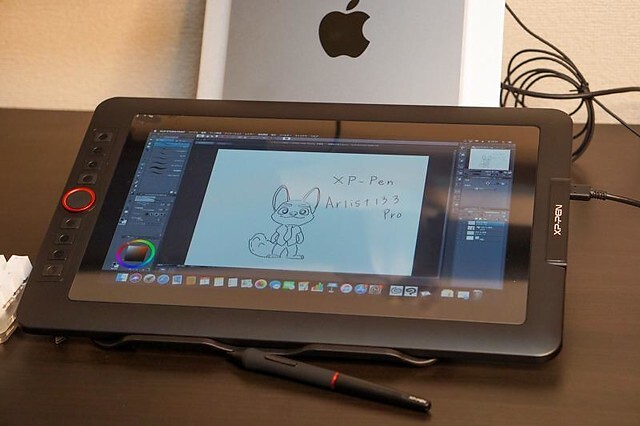
Along the side of the tablet, there are 8 physical shortcut buttons and a creative red dial. The red dial is a function wheel which spins extremely smoothly and is an absolute pleasure to use.

You will get a highly accurate, fast proximity and pressure sensitive PA2 Stylus that is perfect for note taking, handwriting recognition, mark-up and digital art.

With its lightweight screen, pressure ( 8192 levels ) and tilt sensitive ( 60 degrees ), battery-free pen, and low price ,the XP-Pen Artist 13.3 Pro is a great budget screen-tablet for hobbyists or beginners.

3. XP-Pen Artist Pro 16

This eye-catching XP-Pen Artist Pro 16 ergonomically designed to be user-friendly and is come with a solid aluminum metal case, Light and portable with a 9mm thick slim design.

The 15.4-inch screen space supports 1920 x 1080 resolutions and projects every creation with the highest details. Further, a 178° wide viewing angle makes viewing comfortable, natural, and smooth.

99% Adobe RGB color gamut and 16.7 million display colors give the tablet the power to make every display look gorgeous and vivid across the screen.

The glass is fully laminated with the screen to ensure the best drawing experience by making the X3 Elite Plus Stylus work naturally and minimize parallax.

This X3-Smart-Chip Stylus has a whooping 192 pressure levels, low activation force and tilt recognition, which all gives you an amazing precision for most natural drawing experience.

The pen has a built-in eraser end,and is preset to “erase” , you can just flip your pen and erase your drawings / notes with the digital eraser.

In addition, The 8 shortcut buttons and two wheels provide much convenience after customisation. It's a very unique design which is actually fairly useful that has a physical spin wheel on the outside, and a virtual touch pad in the middle.

The styling of the device is very smart and elegant that surely adds to the personality of the user. With its specifications, this tablet seems to be very promising, with top-of-the-line features around the board and a decent price.

4. XP-Pen Artist Pro 16TP

XP-Pen Artist Pro 16TP is one of the best drawing tablets with 4K UHD ( 3840 x 2160 ) resolution and a 15.6-inch multi-touch screen. The display of this drawing tablet also supports 124% sRGB wide color gamut for vibrant and vivid color reproduction.

It projects all graphical presentations with great accuracy, maintaining a natural transition of colors and perfect color saturation.

It is very user-friendly. The multi-touch control combines perfectly with the functions of the pen to offer a seamless working experience for the users. The glass seamlessly incorporates with the screen and minimum parallax.

It adopts eye strain relief technology with the help of an anti-glare glass screen, which makes everything across the screen mild and gentle to the eyes.

As an ideal drawing tablet, much attention is paid to the stylus that comes with an eraser that is easy to use. The PH2 stylus also supports 60 degrees of tilt function and an 8192 level of pressure sensitivity.

An awesome display, precise pen, and a battery-free stylus lets you bring your projects to life whenever and wherever without disrupting your creative flow.

XP-PEN Artist Pro 16TP supports Windows, Android, Chrome OS and MAC OS. and is compatible with Photoshop, Illustrator, SketchBook Pro, MediBang, Clip Studio and many more digital art programs.

This is the most expensive tablet on my list, but as they say—you get what you pay for.

5. XP-Pen Artist 22 (2nd Generation)

XP-Pen Artist 22 (2nd Generation) is a great choice if you need a large tablet that can handle long hours of working without heating up or throttling.

It has a massive 21.5” drawing area that has a Full HD resolution of 1920 x 1080 for both amateur and advanced use.

Have complete control over your artwork and experience the nuance of every hue on the spectrum thanks to advanced color quality (90% Adobe RGB coverage).

XP-Pen Artist 22 (2nd Generation) has 8192 levels of pressure sensitivity to give you the most accurate performance and realistic pen-on-paper feel.

The battery-free pen's outstanding tilt recognition and virtually lag-free tracking will give you the ultimate control over your creative process.

The pen comes with customizable press keys to switch between brush and deleting options and for adjustment of color and size of the brush.

In addition to HDMI connection, this device also supports another connection types which is USB Type C to Type C.

This tablet comes in the box with the adjustable tablet stand, battery-free pen, pen holder, screen protector, black glove, adapter , and combined cable.

Whether you're into drawing, photography, animation, fashion, sketching, image editing, 3D sculpting—this tablet will do the job.

6. XP-Pen Artist 24

The XP-Pen Artist 24 boasts a 23.8-inch IPS monitor that has a QHD resolution of 2560 x 1440. 2K resolution represents every details with vivid clarity.

It offers maximum working space to users to assist in better navigation across the screen to let imagination and creativity take their shape without any limitations.

It covers 127% of the sRGB and 94% of the Adobe RGB color space. which is designed to match the professional-grade quality, making it ideal for high-level editing of imagery and photography.

There's an in-built tilt recognition technology in the device that gives it natural tilt support.

It also comes with a pressure sensitive (with pressure levels going up to 8192), cordless and battery-free pen to save you the trouble of charging it.

Has an ergonomically designed stable stand makes the screen free from shaking. The multi-angle adjustable stand allows you to set the operation angle freely to suit the way you sit.

Supports VESA mount, which mean you can use with Ergotron arms, or many other mounting products.

XP-Pen Artist 24 is one of the most popular choices for everything to do with digital creation and visual thinking. If you want to improve your digital expression, this device has all the essential features required to sharpen your skills and also gives you the freedom to explore.

Conclusion

A friendly reminder, the drawing tablets with screens mentioned above must be used with a computer.

For years Wacom has been the standard for drawing tablets; however, I have personally stopped using Wacom tablets in favor of the XP-Pen Artist. They are equally as good!

The best screen drawing tablets for one person will differ from the next, depending on your seriousness as an artist, your budget, and whether or not you'll want to use it for non-artistic purposes.

All this information provided or given is to help you choose your perfect device and decide for whom you want it.

With proper guidance and information, the user can get the desired product in their budget and comfort.

We hope you found this article helpful, and we wish you plenty of success with your artistic pursuits.

Source: https://www.xp-pen.com/forum-5743.html

Tuesday, November 2, 2021

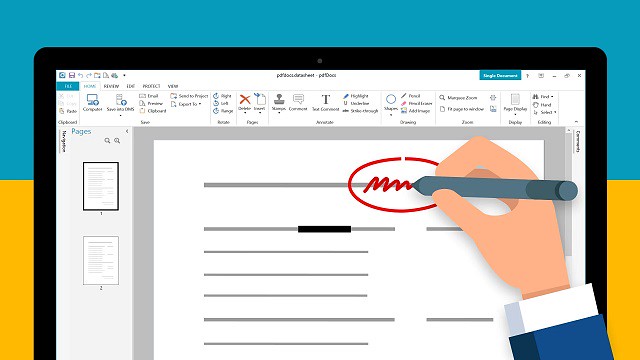
Annotating, Writing and Signing PDFs using a Drawing Tablet and annotation software


PDF is short for Portable Document Format and it is a versatile file format for sharing documents online. For example, many contracts and documents are signed virtually and saved as PDFs because the format tends to be more secure.

PDF files have been around for over two decades now. There isn't a single user who has not gone through these as they are ubiquitous. PDF files not only contain text, but they also have media such as audio and videos.

If you're exchanging and creating PDFs with your peers or coworkers, chances are high you'll need do some notation. Annotating PDFs refers to adding notes and important remarks to the PDF for other readers. It's common during the development process, and may be required for you to sign or fill out a PDF as well.

Don't worry if you don't have much experience annotating like this on a computer. We'll go over the easiest ways to annotate a PDF on Windows and Mac OS.

What Is an Annotation?

When you mark up text, you are in fact having a conversation with what you are reading. So, an annotation is important.

Annotation is a fancy word for "marking a sentence, paragraph, page or anything else." There are various markup tools you can use to annotate what you are reading: underline a sentence, use a highlighter, add a comment with an arrow, flag with a symbol, draw a shape around it, tag a Post-It note on it, etc.

Use the selection and the markup tools annotate the PDF. You can use type, sketch, draw, use shapes, add notes, sign, and change the format for all.

7 Best PDF Annotator Software for Mac and Windows Users

Creating or reading a PDF is simple enough, but if you want to edit or annotate a PDF without changing it to a different format (or disturbing its layout), you'll need to have a dedicated PDF editor on hand.

Conventional PDF readers don't make it easy to draw or write freehand onto documents.

PDF editors are a different beast than PDF readers or word processors. They're designed to handle one specific format and perform a limited number of tasks within that format.

The ability to allow single or collaborative annotation and markup is paramount. Good PDF editors should offer helpful annotation tools like highlighting, sticky notes, comment boxes, message stamps (like “approved” or “confidential”), or even freehand notes.

Many – including Adobe's own Acrobat Reader – make it easy to highlight text or add your signature.

1. Adobe Acrobat Reader DC

If there's something you need to do to a PDF (and if you want to look right and stay secure), Adobe Acrobat is your best choice.

This is the industry standard for PDFs. Adobe makes it easy to create, edit, and sign PDFs (and track their activity) with its modern, intuitive interface.

The software is available for Windows and macOS systems, as iOS and Android apps, and as a Google Drive add-on.

2. Foxit Reader

Foxit PDF Reader allows you to annotate otherwise unmodifiable PDF files using its suite of drawing tools.

These drawing tools feature a variety of shapes, such as arrows, lines, rectangles, ovals, polygons and clouds, but it also offers a freehand Pencil Tool that allows you to draw or write whatever you desire.

If you mess up, don't worry; Foxit PDF Reader also offers a Rubber Tool which allows you to erase marks made by the Pencil tool.

3. Drawboard

Drawboard PDF is now available for free through the Microsoft Store. Drawboard PDF can open, read, mark up, edit, write, annotate, ink, draw and save multiple large and complex PDF documents.

Millions of engineers, architects, lawyers, students and educators are already using Drawboard PDF every day for fast and collaborative PDF markup.

4. PDF XChange Viewer

The smallest, fastest, most feature-rich FREE PDF editor/viewer available! Create, View, Edit, Annotate, OCR and Digitally Sign PDF files plus much more....

PDF XChange Viewer has lots of features that are only available in paid versions of Acrobat or Foxit.

5. Xodo PDF Reader & Annotator

Xodo is one of many free PDF viewers. It supports annotations that will also work with other PDF viewers such as Adobe Acrobat Reader, and the app makes it easy to mark up documents using digital inking. Best of all, Xodo can save your digital signature for use across multiple documents.

Xodo works on Windows, Android, and ChromeOS, so no matter what you get you'll have a free, excellent PDF annotation app.

6. OneNote

In the OneNote free note-taking application you can markup, highlight and tag the PDF document and it will be automatically saved to your OneNote Notebook. You can then print it, use it in a presentation, or share it via email and other apps.

Annotating PDFs in OneNote could be a good way to have students highlight parts of speech in a document that they share with you. It could also be a good way to draw attention to a particular passage in a text or make suggestions or improvement.

7. Xournal++

Xournal++ is a free handwriting notetaking software with PDF annotation support. which runs on Linux, macOS and Windows 10.

Xournal can be used to annotate PDF files, by loading the pages of a PDF file as backgrounds for a journal.

Best tablets with a stylus pen for annotating, Writing and Signing PDFs

If you're going to mark up a PDF, you'll want a good stylus that come with a tablet. These styli will help you create a clean signature and attractive annotations.

This is just comes down to what features you want and how much you're willing to pay. Do you need a full OS? Or just something basic that can open PDFs and ink on them.

If marking up PDFs is something that you do a great deal of and a key part of your job, I would recommend getting the portable touch screen device ( such as ipad pro, surface pro, samsung galaxy tab.... ) you can find that supports the use of a highly-sensitive pen stylus.

Just open your document in PDF Reader, and you can begin writing on it with your favorite stylus or use a finger on a touch device.

If you already have a separate mac or pc and don't need portability I'd recommend a cheaper option - USB drawing tablet.

All graphics tablets, with or without a display, support to write, sign name, comment, highlight on PDF like using a real pen on real paper.

The big time saver is the programmable buttons and dial that allow instant access to any menu feature you frequently use. It's a huge time saver.

Digital pens are also a step above. it can be used as a mouse as well as a drawing tool. Angle and pressure sensitive as well as two programmable buttons on the pen (I use for single and double click selections).

The drawing board senses pressure so it is recommended to use the least amount of pressure from your hand while writing.

They can be a little unnatural to use at first, hopefully you'll get used to it. They start cheap enough that you can see if you like them anyway.

One tip - whilst an A4 or larger surface feels like it ought to be a good idea, you end up moving your pen quite a lot and it gets tiring. Try smaller first.

Annotate PDF with Drawing tablet

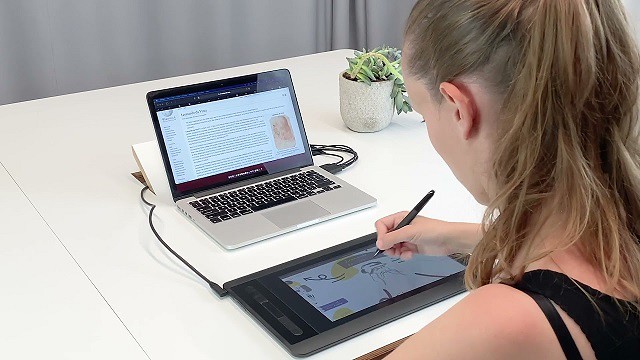
Connecting a Drawing tablet & pen to your laptop or desktop allows you to write or draw electronically.

The pen tablet connects via USB or wireless. After downloading and installing the necessary driver you can use the pen and tablet to control your computer much like a computer mouse.

Then Use a PDF Annotator software to write, draw, or annotate prepared PDF slides.

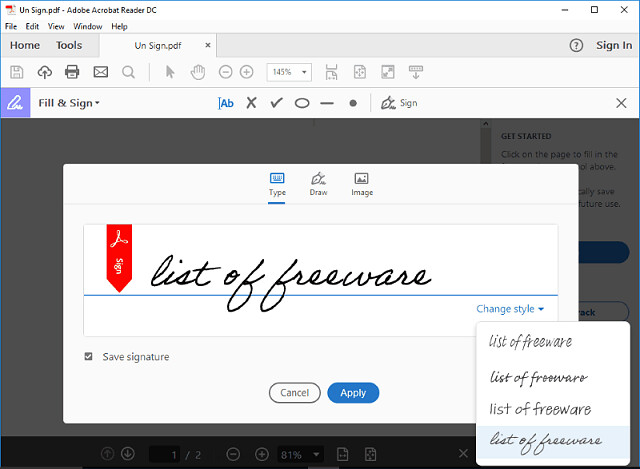
How to creat your digital signature on PDF file in Adobe Acrobat Reader DC

1. Open the Acrobat Reader DC and a PDF file that you want to sign your name.

2. Click ‘Tools' and then find the item ‘Fill & Sign' from the ‘Tools' menu, open it.

3. Click the item ‘Sign', then choose ‘Add Signature'.

4. Click ‘Draw', then you can use stylus to draw. After finishing your signature, click ‘Apply' to save it.

5. The signature can be placed anywhere in the PDF after saving it. For example, put the signature at the place that you want it there: choose ‘Sign', click that place, then signature comes out.

How to use graphic tablet to draw, handwrite, comment on or highlight PDF files in Adobe Acrobat Reader

1. Connect the tablet and open the Acrobat Reader DC software.

2. Click ‘Tools' and then find the item ‘Comment' from the ‘Tools' menu, open it.

3. Click pen icon that named ‘Draw free form' pen to draw. you can select a color and line thickness you want from the icon on the toolbar.

The ‘Draw free form' option makes you can use the tablet pen to draw words freely on PDF files, just like to draw on a canvas.

The ‘Draw free form' option also makes you can use the tablet pen to draw, line, circle or mark out the important content.

4. Move the cursor on the circled pen and click it. Then you can use the tablet pen to highlight the content you want.

Digital Drawing and Writing in Word, OneNote and PowerPoint with your drawing tablet

With the latest version of Office 365 come some pretty cool features.

In Microsoft Word , OneNote or Microsoft PowerPoint, head over to the Draw tab and simply pick your pen. Then start marking up the doc. An entire menu of options for the electronic pen will then be available in the ribbon.

Both programs also allow you to use Windows Ink to create math equations using a pen instead of a mouse or keyboard and in Word, you can embed a drawing canvas right into your Word doc. Save your doc, and you ink is saved too.

Best XP-Pen drawing tablets Recommendations for annotating pdfs

Several brands exist, XP-Pen are pretty decent too, and hit all budget levels including a small portable model.

XP-Pen is one of the leading graphic tablet manufacturers in the world.

Anything made by XP-Pen would be a good option. They are very highly regarded in the digital art community.

I would recommend the XP-Pen Star G640, I used this for marking up documents but also extensive photoshop use.

1. XP-Pen Star G430S / Star G640 / Star G640S

XP-Pen Star G430S / Star G640 / Star G640S art tablet is designed with slim and compact sized with an active area of 4x3 inches / 6x4 inches / 6.5x4 inches offering perfect creative space for limited desktop areas.It is easy to carry out and always ready for your creation whenever and wherever.

Battery-free Digital pen P01 features 8192 levels of pressure sensitivity,5080LPI pen resolution and virtually no lag, providing you ultimate precision and control.

The Star G640S has 6 buttons on the tablet that can be set to any art program shortcut keys. It supports Android and Chromebook devices, apart from your windows and mac os ( Star G430S / Star G640 only compatible with windows and mac os ).

With stylus and the tablet ,teachers and studernts can easily handwritten edit,diagram,do math,annotate on virtual whitebord in Zoom, Team and Xsplit while streaming or broadcasting.

It is compatible with Word, Powerpoint, OneNote and more.It is also perfect for taking notes ,jotting down ideas and business signature during web conferencing and remote working.

2. XP-Pen Deco Mini4 / Deco Mini7 / Mini7w

With 4x3 inches / 7x4 inches / 7x4 inches workspace, XP-Pen Deco Mini4 / Deco Mini7 / Deco Mini7w graphics tablet is compact and lightweight, which makes it convenient to draw and write outdoors.

The battery-free stylus P05D offers 8192 pressure levels and ±60° tilt recognition ( Deco Mini4 version doesn't support this function ) for beginners to design and creat.

Built-In 2.4G high-speed wireless connectivity of Deco Mini7w tablet can reach to 10 meters transmission distance. which is more convenient for you to capture your creativity.

XP-Pen Deco Mini4 / Deco Mini7 / Mini7w pen tablet can be used on various operating system: Windows, Android, Linux , Chrome and Mac OS.

3. XP-Pen Deco Fun XS / S / L

Available in three sizes ( XS - 4.8× 3" / S - 6.3 × 4" / L - 10 × 6.27" ) and four colors ( Classic Black, Space Blue, Apple Green and Carmine Red ), XP-Pen Deco Fun offers more choices to users who pursue individuality.

The battery-free stylus is light and super-accurate which supports up to 8,192 levels of pressure, 60 degrees tilt sensitivity ( XS version not support this function) .

The Deco Fun graphic Tablet works well with Windows, Mac, Linux, Chrome OS and Android devices . Also compatible with all major digital art programs.

4. XP-Pen Artist 12 / Artist 12 Pro / Artist 12 2nd Gen

XP-Pen Artist 12 Pro / Artist 12 2nd Gen tablet features a stunning 11.6-inch full-laminated screen with Full HD 1080P resolution, letting you enjoy immersive viewing in great clarity and fine detail.

full-laminated screen ( Artist 12's screen is non laminated ) reduces the parallax to the lowest so you can easily control the cursor where you expect to be.

90% NTSC color gamut of Artist 12 2nd Gen ( Artist 12 and Artist 12 Pro are 72% NTSC ) is excellent. which ensures the color of your artwork matching the color that you desire.

The battery-free stylus has a resolution of 5080 LPI and has 8192 levels of pressure sensitivity. There is a tilt support available in Stylus of Artist 12 Pro and Artist 12 2nd Gen tablets ( the stylus of artist 12 not support this function ).

The Stylus of Artist 12 2nd Gen come with new X3 chip has low activation force which allows the tablets to detect the slightest of touches from the pen. This feature alone massively improves the user experience.

Conclusion

Annotating is a key reading skill that enables you to actively and critically engage with text. Besides using it to comment on and capture your thoughts as you read.

annotation can also be used as an instructional tool with your students. For instance, you can use it for formative assessment purposes, for comprehension checks, to collect students feedback and many more.

There will be times that you have to markup a PDF, highlight specific text, or annotate something. Instead of searching for a dedicated PDF reader, you can perform all of that inside the Microsoft Edge web browser.

XP-Pen tablet does have the ability to write in Microsoft edge. To do this, select the drawing tool in Microsoft Edge and you'll be able to write over any webpage.

Annotation with the drawing tablet was excellent, and it's something that cannot be achieved with the typical computer peripherals or even smartphones.

For those who need to read and annotate many PDF documents everyday, the handwriting input device would do wonders and makes the process faster and easier.

Source Link: https://www.xp-pen.com/forum-2887.html

Sunday, October 24, 2021

Adobe Illustrator and Drawing Tablets: Simple ways to spark your creativity


Vector graphics are typically completed using digital software like the Adobe Illustrator, corel draw, Affinity Designer or the Inkscape ( free).

Adobe Creative Suite is, by far, the industry champion when it comes to graphic design software. Illustrator has become the industry standard for creating vector graphics. It's practically used by everyone who wants to (and actually dabbles in) graphic design.

Adobe Illustrator uses mathematical constructs to create vector graphics. It is used by both graphic designers and artists to draw vector images.

Generally, professionals used it to create illustrations, diagrams, logos, graphs, charts, and more. If you ever need to share files with other creative professionals (including printers), things will go smoother if you're using the most common software.

Since Illustrator is made by Adobe, things work generally pretty well when you need to go back and forth with other Adobe products, such as Photoshop or InDesign.

Adobe illustrator is more user friendly & offers the most precise Pen tool for creating Bézier curves. Which is boon for digital artists & illustrators.

Creative output depends on your mastery on tool. If you have mastered Illustrator then it's good for you. ​If you're a budding graphic designer, you need to learn how to draw in Illustrator with the drawing pad tablet.

The scale factor can play an essential role in measuring distances, but it isn't very easy. There are specific designs and figures that you can't figure out quickly. Hence, you would need to know how to use a tablet to draw on a computer.

Here's how you can draw in Illustrator with a tablet

It is extremely necessary to choose a tablet that supports the advanced version of Illustrator. Not every device can support the advanced version owing to technical difficulties. The compatibility between Illustrator and tablet will depend on the Android version.

Once you have the tablet, make sure to connect it to the pen. If you are using a tablet to draw on Illustrator, make sure that the device is connected to the pen and system respectively. The compatibility between the tools helps to create a seamless design.

It is advisable to use the shortcut keys for creating straight lines and filling colours. The shortcut keys can make it easy for you to draw on the tablet.

Once you have connected and have an idea, make sure to download the driver. The driver download enables you to create designs and further allows you to store the same on the cloud. Hence, the risk of losing the file will be reduced.

You're all set to create beautiful graphic designs.

When you draw in Adobe illustrator, it becomes essential to proceed accordingly. Adobe illustrator is indeed one of the best designing tools and can perfectly serve the needs of professional designers. With Illustrator, you can easily create anything you want.

The Adobe Illustrator has come a long way, thanks to the presence of so many creative tools. With Adobe software, you can create a wide range of designs and illustrations that will capture your attention in no time. Some of the most commendable features of Adobe Illustrator include path editing and point alignment.

Swapping Pen and Paper for Stylus and Screen

If you know how to draw in Illustrator, you shouldn't be having a problem using the graphic tablet. A stylus only helps to make things easy. The pressure-sensitive digital pens offer more flexibility than that of a mouse for drawing. The digital drawing tools are incredibly convenient and can help with refilling the supplies.

If you're drawing digitally, all you will need is a digital stylus and tablet. Each of the digital drawing tools is extremely beneficial. With the help of a display tablet, you can quickly draw on it and get the final view on your screen. You can easily connect the tablet with your computer through a USB cable. The display tablets make drawing very easy.

Rather than going out of your budget, you should prefer staying within your budget and working with what you have. Digital drawing has gradually improved over the past few years. Even beginners can have a significant role in improving functionality. Some of the popular tablets that can digitise painting and sketchings include XP-Pen Tablets. As a result, you get complete flexibility to maintain drawings and notes digitally.

The XP-Pen tablet and Illustrator combination is ideal for creating great works of art. Take your drawings to the next level with a powerful drawing pad tablet with screen, the XP-Pen Artist series tablet.

Using Adobe editing software like Adobe Illustrator on your XP-Pen digital art pad you can create logos, typography, drawings, and more for print, video, web, and mobile.

How to draw in Illustrator With a Tablet?

The Paintbrush Tool and Bob Brush Tool are some of the essential parts of Adobe Illustrator. Each of them has its benefits.

The Paintbrush Tool

You can easily create vector drawings with the help of Adobe illustrator. You can apply the paintbrush Tool to get the perfect appearance. You can create different designs using tools such as the Line tool and Rectangle tool. With the help of this tool, you can make any brush strokes you want.

The Blob Brush Tool

The blob brush is one of the best exceptions if you want to create paths. Using the blob brush tool, you can easily make the outlines and eventually fill colours in those shapes as you keep drawing. The Blob Brush tool acts very similarly to a paintbrush tool. However, it is necessary to understand the unique features of the blob brush tool. You can also adjust the shapes and colours accordingly.

How to Set up a Pen for Adobe Illustrator?

If you want to draw in Adobe Illustrator, you need to set up the pen and tablet with the software. Make sure that they are connected to the system so that you can easily create the drawings.

Open the tablet you are to connect and choose how you want to customise. Make sure to analyse the properties of the tablet. Next, you need to select the tool that is to be set. When the application row dialogue box appears, click on Illustrator, and you can customise it accordingly. If you want to customise it, you need to keep the software open and run it in the background. Make sure to click on the plus sign, then choose Illustrator and click on OK.

The hand tool is one of the most commonly used tools. As a result, you can switch to any pen depending on your requirement. The Grip Pen and Adobe Illustrator are some of the best properties, and depending on the tablet you're connecting, you can get the best results.

Digital Drawing

If you want to learn how to draw in Illustrator with a tablet, you might check out YouTube. However, it is advisable to first try it on your own. If you keep trying it on your own, you will eventually learn. The hardest part, however, is to sync your tablet with the computer.

Once the devices are connected, you are all set to go. Compared to a PC, you should prefer using adobe illustrator with a tablet. Most of the tablets come with a stylus, which makes drawing pretty easy.

If you do not have Adobe illustrator on your tablet, you will need to install it. While you can get a crack of Adobe Illustrator from the internet, you might as well purchase the premium version of Adobe Illustrator for advanced features.

You can easily create a design using the stylus on the tablet, and it will appear on your computer. However, the steps would vary if you draw in Illustrator using a drawing tablet.

Drawing on Adobe Illustrator software with a Drawing Tablet

Make sure that your system, computer or laptop is connected to the drawing tablet. Open the software and start creating the design you want. It will appear on the screen.

You can also select the tools and fill colours in your design to suit your requirements. Eventually, you're all good to go.

Becoming Acquainted With Digital Drawing Tools

Digital drawing tools have come a long way. If you want to know how these digital drawing tools work, you need to experiment independently. As the saying goes, “Experiment is the best teacher,” you will never get to know how a particular tool works if you don't know about its features.

Experts have always recommended handling to learn more. This eventually helps you become familiar with the medium you're the most comfortable with. Start with experimentation and then take it to the next step.

Graphic design is continually evolving, and it is time that you switch from traditional to advanced. It is necessary to understand that these tools are more than what you see. It is better to analyse what suits you the best so that you can be productive.

Digital Illustration

The free-form illustration is indeed one of the best forms of drawing. If you are taking up digital illustration, you need to switch from a mouse to a tablet. Using a tablet can play an essential role in developing connection withdrawal. Moreover, with tablets' help, you can create sensitive designs such as strokes of different widths.

Takeaway

Digital drawing tools are in no way meant to hold you back. Several platforms can help your designing career. But, Adobe Photoshop is one of the most preferred platforms by experts. You can easily create different designs and customise them to suit your needs. Adobe provides you with a range of brushes. Hence, you no longer need to stay limited to the designs.

You can quickly draw in Adobe illustrator. A few experiments and research on YouTube can play an essential role in making you familiar with the platform.

Happy Drawing!

source link: https://www.xp-pen.com/forum-2818.html